
You can do this several ways. From the Symbols List, you can doubleclick an unbolded symbol to add it to the platform. You will notice the symbol will then become bolded and the instrument will appear from your simple and…
Learn More
You can do this several ways. From the Symbols List, you can doubleclick a bolded blue symbol to remove it from the platform. You will notice the symbol will then become unbolded and the instrument will disappear from your simple…
Learn More
You can also manage your subscriptions via the 'Manage Symbol Subscriptions' box, which appears when you click the symbols button at the top of trading station: You will see a version of the symbol list here as well where you…
Learn More
No, this is not possible at this time to add your own list within the Symbols List window.
You can simply click the X on the Symbols List tab to remove it from your platform:
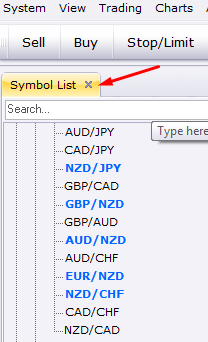
The new Symbol List feature will allow you to quickly find the instrument you need, either through scrolling down the list of tradable instruments, or by typing the instrument you need into the search bar: Once you find the instrument…
Learn More
You can make as many watchlists as you would like but keep in mind that you can only display one watchlist at a time in the platform.
Your watchlist will be the symbols you are subscribed to in the simple and advanced dealing rates tab. You can always check which watchlist you have open by looking at the symbols that appear in these tabs.
You can move your Watchlist from computer to computer by simply moving the watchlist files, which you can access by going to View -> Watchlists -> Manage Watchlists -> Export Simply copy these files and use the file-sharing method of…
Learn More
You can remove a Watchlist by going to View -> Watchlists -> Manage Watchlists. Once the new window appears, you can click 'Remove' to Delete that particular Watchlist you have highlighted:
Learn More
You can open any watchlist you created by going to View -> Watchlists -> Open Watchlist. From there you can select the watchlist you would like.
Learn More
To rename a Watchlist, go to View -> Watchlists -> Manage Watchlists. You can then select the Watchlist you would like to edit and click the 'Rename' button:
Learn More