
The Trading Station Mobile includes powerful charts with various time frames, indicators, and charting tools. A small chart is visible from most windows. Double tap the chart to expand it. To gain access to chart options and tools, select the…
Learn More
If you need to modify the details of an existing entry order, tap on the ‘Orders’ tab. Select the order and then tap ‘Change.’ The price of the order and the trade size can be adjusted. Confirm your changes with…
Learn More
In order to install two instances of MetaTrader 4 (MT4) (have two platforms running side by side) please follow the following steps: Download the installation file.Run the installation file once it downloads. Wait for the installer to initiate, then proceed…
Learn More
Save your Expert Advisor file to the experts folder located at C:Program FilesFXCM MetaTrader 4experts. If installed correctly, you will see the Expert Advisor file in the "Navigator" window under Expert Advisors and is now available to activate for live…
Learn More
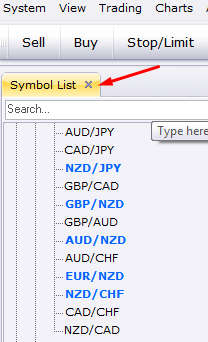
You can simply click the X on the Symbols List tab to remove it from your platform:
To enable One Click Trading in the the Trading Station platform, please use these instructions: Please click 'Trading Settings' in the bar located at the top of the platformThis will open the “Trading Settings” window:'Default' Mode will allow you to…
Learn More
DOWNLOAD TRADING STATION SELF-EXTRACTING EXE FILE (11.5 MB) Click "Run" or "Open". (Do not click "Save".) If you have previously downloaded a version of the trading station onto your computer, please UNINSTALL IT FULLY before downloading the platform again.Follow the…
Learn More
Launch the MetaTrader 4 installation file, choose your preferred language and select 'Next'.Check the box to agree to the terms and conditions and select 'Next'.Continue to select ‘Next’ until the platform begins to install. Once the platform has finished installing,…
Learn More
In order to dock charts in Trading Station, please follow the steps below: Click on the tab of the chart you would like to move. Without letting go of the click, begin to drag the chart out of the line…
Learn More
Stop and limit orders can be added to trades that are currently open. Tap the ‘Open Positions’ tab to view your open trades. Select the trade you would like to add a stop or limit order, then tap ‘Stop’ or…
Learn More
When you are ready to create an order, tap on the Buy or Sell price for the instrument you wish to trade. Next, enter your desired trade size and submit the market order. Alternatively, you can tap on the instrument…
Learn More
An entry order can be created from the ‘Rates’ tab: Tap on an instrument to activate it, and then select ‘Entry’Enter your trade size, select ‘Buy’ or ‘Sell,’ and then designate the entry priceBy default, your order will be good…
Learn More