
This is the toolbar found directly above a chart. It is useful for changing chart settings, as well as adding useful tools to a chart. If you ever forget what any of the icons do, you can hover over them…
Learn More
Sometimes, you may be asked to send in a screenshot of your platform or of an error message you are receiving, et cetera., when you are being assisted by an FXCM team member. If you are unsure of how to…
Learn More
If you need to modify the details of an existing entry order, tap on the ‘Orders’ tab. Select the order and then tap ‘Change.’ The price of the order and the trade size can be adjusted. Confirm your changes with…
Learn More
In order to set up text message alerts in Trading Station, please follow the steps below: Click on “System” in the top Toolbar of the Trading Station window and press “Options” In the options window, please go down to the…
Learn More
If you pressed Create Chart or Open Chart, you will be presented with this screen: By default, charts will open in a new window or be added to an existing Marketscope window. If you wish to have Marketwatch open in…
Learn More
FXCM apps are only compatible with a Windows based operating system and cannot be downloaded onto a mobile device.
Official trading reports can be accessed through MyFXCM or by logging into Trading Station with your MetaTrader 4 account. Trading reports from these two sources will provide you with the most current and accurate trading activity.
You can simply click the X on the Symbols List tab to remove it from your platform:
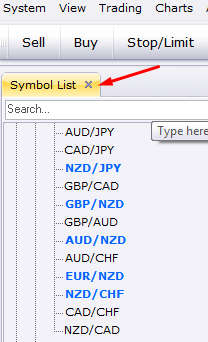
The new Symbol List feature will allow you to quickly find the instrument you need, either through scrolling down the list of tradable instruments, or by typing the instrument you need into the search bar: Once you find the instrument…
Learn More
In this new edition of Trading Station, FXCM has made three major updates to improve your trading experience: Symbols List – This feature allows you to either search for your instrument of choice or view different products under an organized…
Learn More