Download and Install
Overview
The article describes how to download and install the FCLite API.
Download one of the packages to your project directory: forex-connect-lite to work in browser or forex-connect-lite-node for node projects. To download and install, you need to follow these steps:
Step 1: Installing Node.js
Ensure that you have Node.js application installed if you are using a Microsoft Windows computer. To do this, open a command prompt in administrator mode:

Type the command node or node -v and press enter to test if NPM and Node.js are installed.
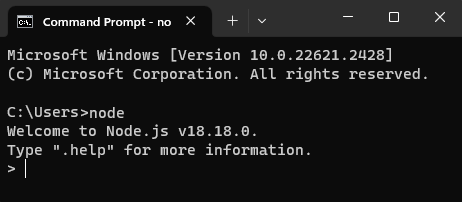
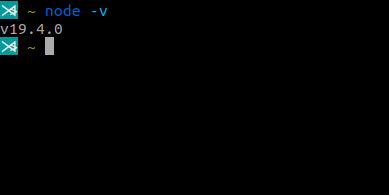
To install Node.js, you can download the latest package from the official Node.js website.
Step 2: Pulling down the project
Create a file named .npmrc in the root of your project containing a single command:
@gehtsoft:registry=https://www.myget.org/F/gehtsoft-public/npm/
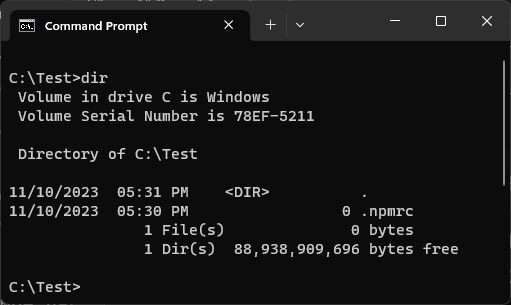
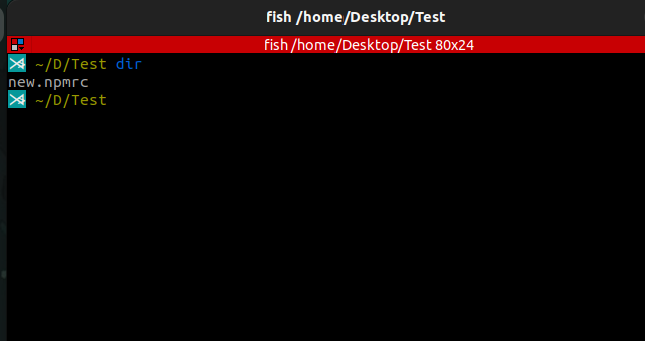
Step 3: Installation
Open a command prompt and change to the directory containing your project. Execute the command:
npm install @gehtsoft/forex-connect-lite or command: npm install @gehtsoft/forex-connect-lite-node.
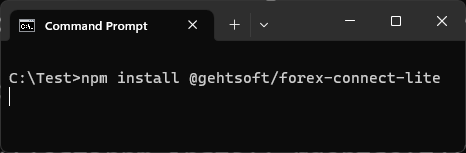
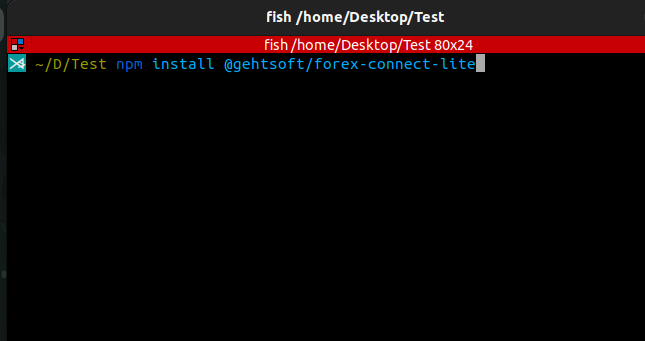
This will download the fclite npm packages and install them.
Now that this is done, you can see that you have download one of the packages to your project directory: forex-connect-lite to work in browser or forex-connect-lite-node for node projects.
Now you can access the FCLite API from your project.
| Table of Contents | |
|---|---|
| Prerequisites The article describes prerequisites for using the FCLite API. |
|
| Download and Install The article describes how to download and install the FCLite API. |